Powerful Search Features
Just-Snips: It's your haystack after all.
Find the needles in your haystack. So many ways to find your assets across multiple libraries.
Find the needles in your haystack. So many ways to find your assets across multiple libraries.
Find any assets that matches a given fragment in its text meta data: name, description, origin, copyright, tags, and (for assets with text) the text of the asset.
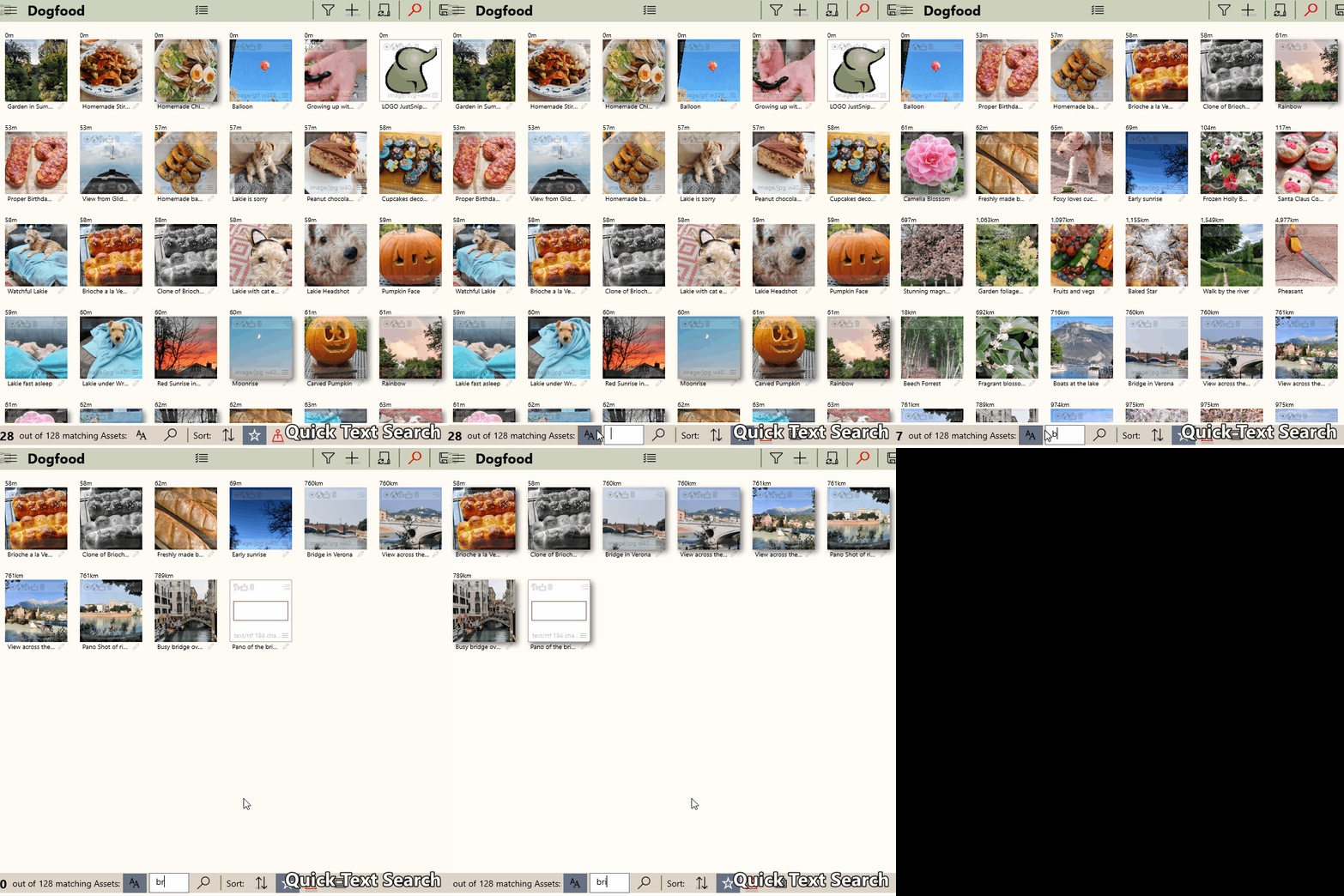
Every asset can have a location assigned to it. This can be a set of geo coordinates or an address, or both. You can search for those locations.
Looking for something in a range of dates, a specific day over the years, last month, in a week range? Just-Snips can do that.
Typically, a search is part of a library. You can create PowerSearches in the folder structure that houses your libraries. There, they will search all libraries (or a selected subset) inside their folder and, if so defined, also their sub-folders. This is very powerful.
You can describe your search parameters with any combination of an asset's metadata.
Find assets with matching text fragments in their names, description, origin, copyright, tags and even OCR contents, using patterns like "*after" or "*hotel*view*".
You can add people to an asset, either through a face scan, a manual face mark, a name or just by adding them to the asset. Then, you can search for assets with those people in them.
You can narrow your search by indicating which types of assets you want to include.
Find assets by dimensions, ratios, byte sizes, within defined ranges.
Libraries can scan assets for their average and most frequent colors. Those can be used to find assets of a certain appearance.
You can limit your search results to include only favorites.
If you want to find QuickPicks, you can limit your search to just those assets with a QuickPick assignment.
You can limit your search to only masters, or only clones.
To find duplicates quickly, you can limit your search to only assets that might be duplicates..